
Ming-Image-0.1-Design
Ming-Image-0.1-Design is inclusionAI’s open-weight image model for posters, interfaces, dashboards and infographics. Its MIT-licensed release produces complete compositions and can save transparent RGBA images. The 6B label describes the image transformer; deployment also loads an encoder, connector and VAE. Choose the complete pipeline and a measured workload when budgeting GPU time.
Content reviewed:
Use this model
Online access and trials
- Try the Ming Design demo
Availability and signup terms are set by the provider.
Official model repository
- Ming Design model card and recommended settings
Model card, downloads and license conditions.
Local tools and guides
- Comfy-Org files and model-directory layout
Follow the tool’s installation and hardware requirements.
What should you try with Ming Design?
- Draft a poster with a clear title, visual hierarchy, palette and space for final production text.
- Explore a dashboard or UI layout before rebuilding its controls as usable components.
- Generate a standalone RGBA illustration or decorative asset, then inspect its alpha edges against light and dark backgrounds.
- Compare design variants at 1024px before testing the selected composition at 2048px.
Ming Design in a local RTX 5090 workflow
In a September 24 test, Laxmi Kant Tiwari converted the full pipeline to FP8 and ran it on a 32 GB RTX 5090. At 1024×1024, 12 steps and CFG 1.0, designs took a median 7.89 seconds and peaked around 24.03 GB. This was a custom Windows implementation; the official 2048px recommendation was not tested.
The author reports useful menus, short headlines, slide numbers and app-like layouts. Seven of seventeen design attempts worked on the first prompt; ten needed a rewrite. Tiny mockup text and rare long words still failed, and moving a reference character into a new scene could produce a second copy.
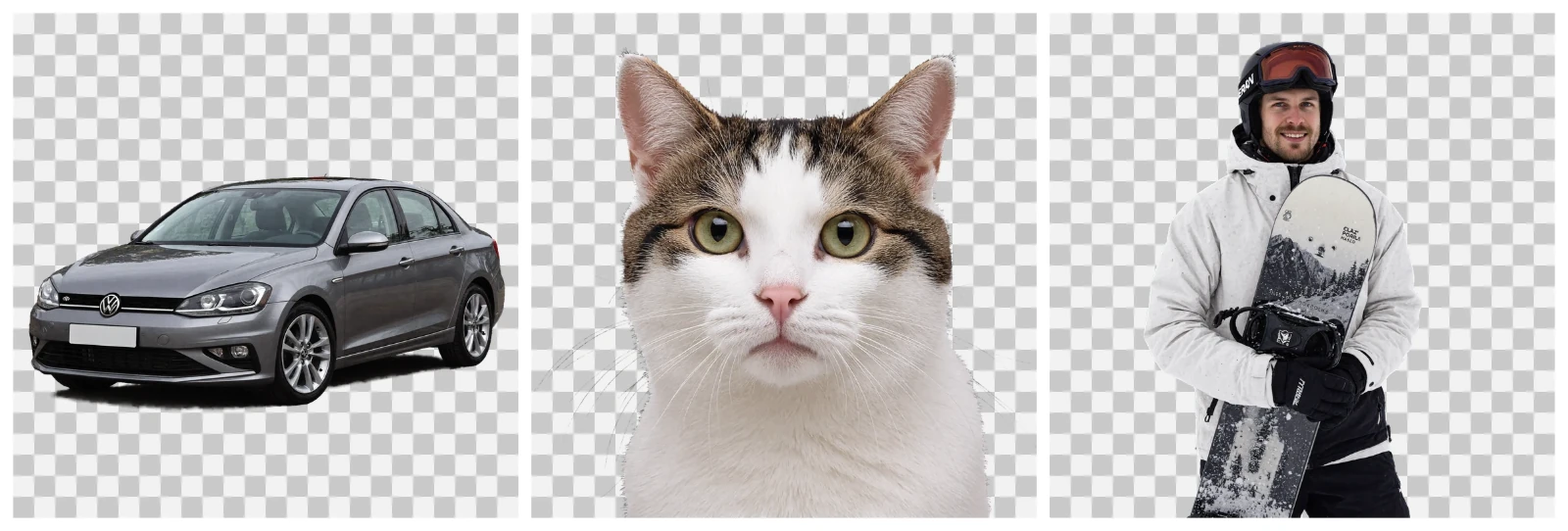
Transparency also varied by subject: the tested cat and car had transparent pixels, while several other subjects and eleven mascot attempts did not. Both BF16 and FP8 showed failures at the tested 1024px size. For a UI draft, inspect the layout and rebuild working components; for final artwork, proofread text and check the actual alpha channel.
This makes Ming a practical candidate for composed design drafts rather than a substitute for editable source files. Compare it with Qwen on the exact labels and editing task you need, keeping their runtime and quantization conditions with the results.
How to use Ming-Image-0.1-Design
Start with the linked Hugging Face demo for a short design brief. Describe the intended canvas, the exact headline, the main object and the hierarchy. For a dashboard, specify the panels and labels you need to inspect rather than asking for a generic beautiful interface. The result is an image; implementing working controls is a separate task.
For local inference, use the publisher’s Ming-Image repository or the ComfyUI integration. The publisher recommends 12 sampling steps, CFG 1.0 and BF16, with 2048×2048 as its main resolution and 1024×1024 for faster trials. Its validated configuration has one CUDA GPU with 80 GiB VRAM.
Keep the first local run small enough to diagnose: one image, one seed and one prompt. Record the chosen weights and runtime version before comparing a quantized result with BF16. Allow memory for the encoder, VAE and runtime as well as the downloaded weights.
pip install huggingface_hub
hf download inclusionAI/Ming-Image-0.1-Design \
--local-dir weights/Ming-Image-0.1-DesignThe complete Ming pipeline in ComfyUI
Comfy-Org provides repackaged Ming files for ComfyUI. Put the Design diffusion model in models/diffusion_models, the matching Ling-mini encoder in models/text_encoders, and ming_image_vae_bf16.safetensors in models/vae. Choose a workflow that supports those three components and preserves alpha when saving.
The Aikimi W4A8 release contains the diffusion transformer only. Pair it with the W4A8 encoder and BF16 VAE from Comfy-Org. Its card identifies the tested ComfyUI, comfy-kitchen and PyTorch versions; use those conditions when reproducing the timing profile. Mixing formats or substituting an unrelated encoder changes the setup.
BF16, INT8 and W4A8 describe different component choices. A compressed diffusion file reduces one part of memory usage, while the encoder, activations and image decoding still consume memory. Check both device usage and system RAM during generation, including loading and any offload transitions.
Check RGBA output before using it in a design
A transparent asset needs an alpha channel in the saved file. View the PNG against two contrasting backgrounds and inspect hair, shadows, thin lines and translucent objects at full size. A checkerboard preview alone cannot show how those edges blend into your page or slide.
Use the publisher’s transparency prompt guidance, then keep the output as RGBA through your editor or export tool. If an application flattens the file to RGB or saves JPEG, transparency is lost. Keep a copy of the original alpha-bearing image before preparing web formats.
For text-heavy layouts, inspect each requested character and number. A title that looks convincing at thumbnail size can still need correction in the final asset. Add editable production copy in your design tool when exact typography or business data matters.
Ming on an RTX 3090: measured quantization tradeoffs
Aikimi published September 29 measurements on an RTX 3090 24GB with 64GB system RAM. Both variants used a W4A8 encoder, BF16 VAE, CFG 1 and 12 steps. The 1024px samples generated posters; the 2048px sample generated a transparent leaf. Timings cover a warm model and exclude startup.
The calculator uses the slower of the two reported 1024px seeds for each quantization. It keeps 2048px as a separate profile. Those settings let you estimate repeated generation time on the measured hardware without turning a small sample into an average for every prompt.
| RTX 3090 profile | 1024px time | 2048px time |
|---|---|---|
| INT8 DiT + W4A8 encoder | 7.6 seconds | 53.2 seconds |
| W4A8 DiT + W4A8 encoder | 8.7 seconds | 57.8 seconds |
Calculate Ming image generation cost
Select Ming in the image calculator, then choose a profile with the matching quantization, resolution and 12 steps. The original BF16 80GB capacity reference has no timing sample, so its throughput stays unavailable. The RTX 3090 profiles provide estimated GPU hours from the published warm-run timings.
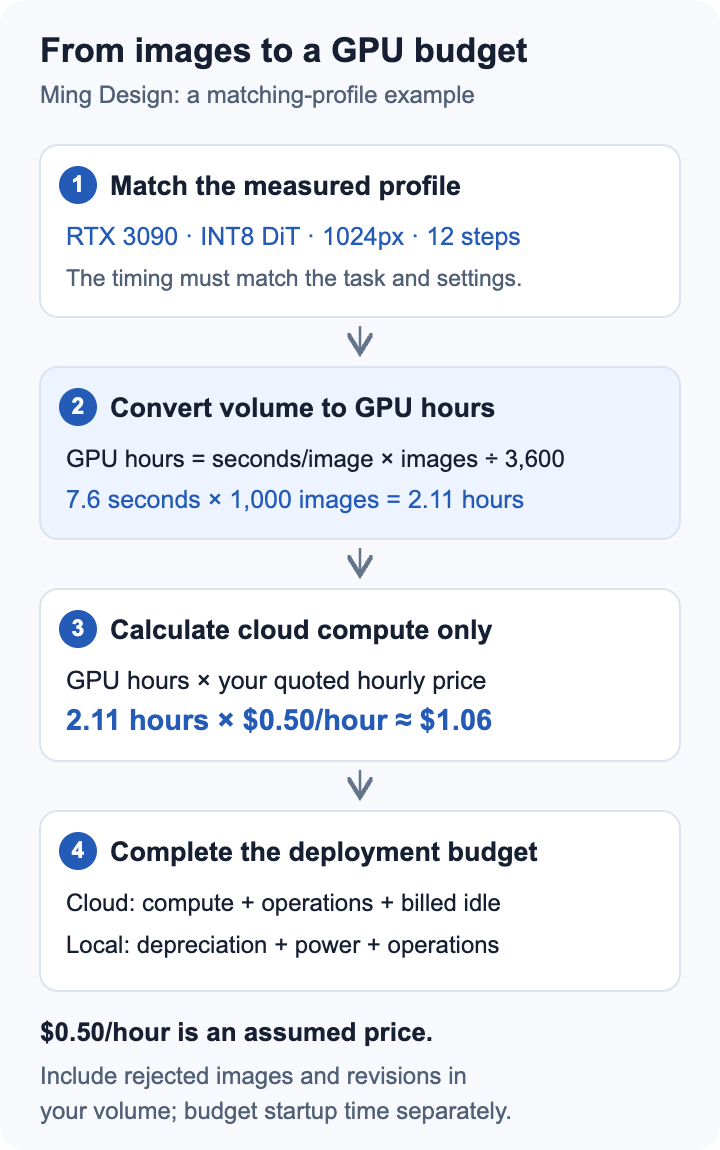
For 1,000 images, the INT8 1024px profile occupies about 2.11 GPU hours; the 2048px profile occupies about 14.78 hours. At an assumed $0.50 per active GPU hour, compute alone would be about $1.06 and $7.39 respectively. These examples exclude loading, billed idle time, storage and taxes.
The calculator accepts your own GPU purchase quote or cloud hourly quote when you want a budget for the measured hardware. These inputs stay labeled as your quotes, separate from published price observations. Local totals include depreciation, modeled electricity and operations labor. Cloud compute prices active generation hours; a dedicated machine kept running needs an additional idle-time budget.
Count rejected images and revisions in the volume. If you need 1,000 accepted assets and discard one in four attempts, budget roughly 1,334 generations. Prompt rewriting and layer decomposition add separate work. Keep the final acceptance check focused on readable text, usable transparency and the layout you intended.
Ming calculator: match the measured profile
This example selects the measured 3090 INT8 profile, 1,000 monthly images and a $0.50/hour quote. Replace the quote while keeping the workload aligned with the measurement.

Ming Design and Design-Layer do different jobs
Ming-Image-0.1-Design-Layer is a separate checkpoint for decomposing a flattened design into editable RGBA layers. A workflow can generate a composition with Design, then use Layer before continuing in an editor. Loading Layer and running decomposition introduces its own memory and time requirements.
Use the Design profiles here for text-to-image generation. They do not price decomposition, image editing or a combined generation-and-layer workflow. If editable slide text and shapes are the final deliverable, inspect the actual exported objects as well as the rendered slide.
Ming Design or Qwen-Image-2.1?
Evaluate Ming when the brief centers on composition, typography or an RGBA design asset. Evaluate Qwen-Image-2.1 when reference-image editing is part of the workflow. Run the same intended layout and exact text, then judge character accuracy, hierarchy, edge quality and the repair work needed before delivery.
Use each model’s matching calculator profile for that comparison. The Qwen reference timings use different steps and an offload setup; comparing seconds without the profile would mix runtime and quality choices. Record cost per accepted asset rather than selecting a model from parameter count alone.
Before you use it
- The complete inference pipeline needs more memory than the 6B image transformer alone.
- Quantized 3090 measurements apply to the specified warm-run workload; new hardware or settings require a new measurement.
- Exact production text and alpha edges need inspection in the final asset.
How to get started
Try one poster or transparent asset in the demo, inspect it at full resolution, then choose the complete local pipeline and a matching calculator profile.
Sources
Sources (7)
- Tiwari’s Ming FP8 designs, edits and failure cases ↗
Source checked:
- Ming Design model card ↗
Source checked:
- Ming Design MIT license ↗
Source checked:
- Publisher inference code ↗
Source checked:
- ComfyUI packaged components ↗
Source checked:
- Aikimi RTX 3090 experiment ↗
Source checked:
- Ming Design-Layer model card ↗
Source checked:
Calculators
Using this calculator for this model
Choose the image task, output size and step count that match your typical generation or editing request. Use the hardware and pricing comparison for that configuration.
How to fill in the calculator
- Deployment
- Local estimates use hardware ownership, electricity and operations; cloud estimates use hourly rental pricing. Compare the path you are considering.
- Usage level
- Choose 120, 360 or 720 active hours per month, based on your planned schedule. For bursty work, use the nearest level as a comparison.
- Output size
- Use the resolution or output size typical for your jobs; larger outputs may change the mapped compute price.
- Steps
- Use the number of inference steps in your usual workflow. Higher step counts can increase run time and cost.
Use the calculator for a deployment budget; enter your expected usage and measured wall power.