
Run your first local model with Unsloth Desktop
Run Qwen3.8-27B or Inkling 2 Mini in Unsloth Desktop. Choose a GGUF, budget memory for context, and open your local chat on another device.
Last updated: 2026-11-23
Unsloth Desktop gives you a chat window for models running on your own computer. Install it on Windows, macOS or Linux, choose a model package and try a short conversation before increasing context. You can then open the same Unsloth interface from a phone or another computer on your local network.

Weights and inference stay on the host computer. The extra device runs the chat interface in a browser.
Pick a model and leave room for the conversation
Start with the Unsloth Desktop installer for your operating system. In the model picker, choose Qwen3.8-27B and select UD-Q4_K_XL from Unsloth’s GGUF files. The language weights are 17.7 GB. If you need image input, check that the matching vision projector is available and include its memory in your test.
Inkling 2 Mini in Unsloth’s UD-Q4_K_XL is a 17.6 GB download. These two files take up similar disk space, but their context caches and runtime memory can behave differently. Both models have smaller files if the 4-bit download leaves too little working memory. On Apple Silicon, the app can also run supported MLX packages. Choose the file for the backend you plan to use. Qwen file sizes and Inkling quantization guide list the exact variants.
Leave context on Auto or start with a short manual budget such as 8K. Send a text prompt, then try the document or image you actually want to use. If longer prompts are slow or fail to load, measure available memory and reduce context before changing the quantization. A lower-bit file can free room at the cost of changing the model’s responses.
In Jerry James’s GPU Partner walkthrough, a Windows PC with an RTX 5090 32 GB runs the Qwen GGUF and sets context to 128K. Use that as a setup example. To budget for a full 128K prompt, measure a request of that length with your cache settings. The Inkling GGUF discussion has examples of how context, cache format and expert placement affect memory.
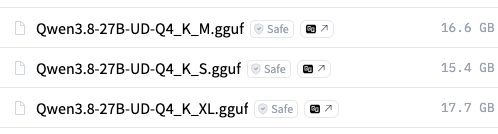
The Q4 files in Unsloth’s Hugging Face file list. Match the suffix in Model Hub before downloading. These are file sizes.
Choose Qwen or Inkling for a task you can check
Both checkpoints accept images and text and return text when the runtime loads the matching vision components. Neither needs image input for work like sorting notes or writing a draft. Start with text to confirm the basic setup. For a vision check, attach a clear image with two or three legible labels and ask the model to transcribe them. Compare the spelling against the image. A plausible description alone tells you little about whether the model read the details you need.
| What you need | What to test in Unsloth Desktop |
|---|---|
| Read a short document or answer a question about a pasted code snippet | Start with Qwen3.8-27B. Keep the input and expected answer small enough to check by hand. |
| Try a second model on the same coding or image task | Run Inkling 2 Mini with the same prompt and output budget. Compare the completed answer and time to finish. |
| Keep the first run on a machine with limited free memory | Try a smaller model or a more compact quant at short context. Check response quality before moving to a longer task. |
The 0.1 GB difference between the two four-bit files is smaller than the memory changes you can get from a different context length or from enabling vision. Qwen is dense. Inkling uses a mixture of experts and repeats part of its network while generating each token. How the runtime places experts and stores conversation state affects which model fits and how it behaves on your machine. Use the two downloads as alternatives to test, with one model loaded at a time.
If you are on an Apple Silicon Mac, the GGUF path gives you the same artifact family as a Windows or Linux example. A compatible MLX package is useful when you plan to stay on the Mac and want to compare that backend. Match the package to the app’s supported model and check image support separately. Metal, unified memory and file format all affect that comparison. Activity Monitor’s memory pressure can show when macOS is short on working memory even if the model appears to load successfully.
Check a clean install before increasing context
Open Model Hub or the Select model menu, search for the full model name, and check the publisher, quantization and file size before downloading. Leave enough disk space for the installer, your selected model, and any vision files. If you already downloaded a compatible GGUF, the Desktop guide explains how to reuse it. That is useful when a second copy would fill the drive. From a supported Hugging Face model card, Use this model → Unsloth Desktop is another way to start from the correct repository. Check the quantization in the app before starting the download. The Hugging Face local apps guide shows the handoff.
When the download finishes, use the settings beside the model to check the context and send one short text prompt. For example, paste a three-line fictional order confirmation and ask for its order number and delivery date. Verify both values before treating the model as ready. If the app cannot load the model, check disk space, close other memory-heavy apps, and retry with a shorter context or a smaller file. If the app opens chat but the model responds very slowly, check which device is doing the work. A model that loads by offloading part of its weights to system memory can behave differently from the same model kept on the GPU.
Measure a larger request with a sample from the actual workflow. Record the model, quantization, context setting, input length, free and peak memory, time until the first text appears, and time until the answer ends. Measure model load separately and repeat the same question in a fresh chat if you want a cold prompt comparison. A model can generate short replies quickly and still make you wait while it reads a long document. Keep the longer context setting if the task benefits from it and you can tolerate the wait.
Open the chat on another device
- On the computer running Unsloth Desktop, open Settings → API → Remote & LAN and set a Remote password.
- Press Start on the LAN access card. When the card says Online, copy the network address it shows.
- Open that address from a phone or computer on the same network. Sign in as
unslothwith the Remote password and send a short prompt. Keep the host awake with Unsloth running.
The official LAN guide shows the Remote & LAN panel in Unsloth Desktop. LAN uses HTTP, so use the raw LAN address on a network you control. Use chat-only access for sharing and keep the host’s API key private if server tools can run code on the computer. If the address works on the host but fails on another device, check guest Wi-Fi isolation, VPN routing and the host firewall.
Find out whether the network or the host is blocking chat
If a phone or tablet cannot open the address, check that it joined the same trusted Wi-Fi as the host. Try a laptop on the same network using the exact address displayed in Unsloth Desktop, including http:// and the port. A guest network may provide Internet access while preventing clients from talking to each other. A host on Ethernet and a phone on Wi-Fi can still work if the router lets those devices reach one another. If the app displays a different address after a reboot, use the new one.
When the sign-in page opens but refuses the password, the network connection is already working. Recheck the Remote password set on the host and use the login name from the LAN setup. If the browser never reaches the sign-in page, check that LAN access still shows Online, the host is awake and its firewall allows the local connection. On a laptop that changes networks, check the current VPN and firewall profile before changing any server settings.
If a second user can sign in but gets stuck waiting for an answer, send a short prompt on the host first. If the host is also slow, check that the model is loaded and that another long request has finished. A LAN browser uses the host’s inference capacity. For a shared setup, test two short requests close together, then try your longest typical prompt while the second device waits. Keep remote access off if all of your devices only need the local connection.
What does it cost to leave local chat running?
Unsloth Desktop is free to download. Local model requests use your own hardware, power and storage. An existing computer can be cheap to try, but keeping it awake solely to serve a household changes the bill. Measure power at the wall during idle and during requests. For example, a host averaging 80 W for eight hours a day uses 19.2 kWh over 30 days, or $3.84 at $0.20/kWh. Use your measured wattage and electricity rate for your estimate.
Compare the Qwen3.8-27B memory guide, Inkling 2 Mini setup, and the running-cost calculator before buying a card for longer context. For client and server options, see the local inference directory.